Usually people assume by themselves NTFS permission has a higher priority. But infact when NTFS & SHARED LEVEL both applied to a folder or drive, SHARED LEVEL permission always take a higher precedence. So when you provide Full Permission in Shared Level and provide Deny in NTFS it does not have effect on it.
This might be asked when you go for the windows administrator interview. So make sure that you answer perfectly in single line.
SHARED LEVEL PERMISSION takes higher PRECEDENCE than NTFS LEVEL PERMISSION IN WINDOWS OPERATING SYSTEMS
Showing posts with label Windows XP. Show all posts
Showing posts with label Windows XP. Show all posts
11 June 2008
NTFS and SHARED LEVEL PERMISSIONS IN WINDOWS OPERATING SYSTEMS


10 April 2008
Some powerful RunTime commands can be used in Windows XP and Windows 2000 Professional Operating Systems...
at (windows XP/2000)Scheduling utility.
bootcfg (XP only)This utility allows you to set up your boot options, such as your default OS and other loading options.
cacls (XP, 2000, & NT4.0)Changes the ACLs (security Settings) of files and folders. Very similar to chmod in Linux.
comp (XP & 2000)This utility is very similar to diff in Linux. Use the /? switch to get examples of command usage.
contig (works with NT4.0 and newer)A great defrag utility for NTFS partitions.
control (XP only) - unpublished!Allows you to launch control panel applets from the command line. control userpasswords2, for example will launch a helpful local user admin utility.
defrag (XP only - NT4.0 and Win2k use contig)Yes, XP comes with a command line disk defrag utility. If you are running Win2k or NT4.0 there is still hope. Contig is a free defrag program that I describe on the defrag page.
diskpart (XP only)Use this command to manage your disk partitions. This is the text version for the GUI Disk Manager.
driverquery (XP only)Produces a list of drivers, their properties, and their versions. Great for computer documentation.
eudcedit (XP only) - unpublished!Private Character editor. Yes with this program built into Windows XP you can create your own font!
findstrFind String - similar to Linux's Grep.
fsutil (XP only) - unpublished!This is a utility with a lot of capability. Come back soon for great examples.
getmac (XP & 2000)This command gets the Media Access Control (MAC) address of your network cards.
gpresult (XP & 2000)This generates a summary of the user settings and computer group policy settings.
gpupdate (XP only)Use this utility to manually apply computer and user policy from your windows 2000 (or newer) domain.
ipconfig (XP, 2000 & NT4.0)This handy tool displays IP settings of the current computer and much more.
MMC (XP, 2000 & NT4.0) - Microsoft Management ConsoleThis is the master tool for Windows, it is the main interface in which all other tools use starting primarily in Windows 2000 and newer systems. more Utility used to display text output one screen at a time. Ex. more c:\windows\win.ini
msconfig (XP only)The ultimate tool to change the services and utilities that start when your Windows machine boots up. You can also copy the executable from XP and use it in Win2k.
msinfo32 (XP &smp; 2000)An awesome diagnostic tool. With it you can get a list of running processes, including the residing path of the executable (great for manually removing malware) and get detailed information about hardware and system diagnostics.
narrator (XP only)Turns on the system narrator (can also be found in accessibility options in control panel). Will will allow your computer to dictate text to you.
netsh (XP & 2000)A network configuration tool console. At the 'netsh>' prompt, use the '?' to list the available commands and type "exit" to get back to a command prompt.
netstat (XP)A local network port tool - try netstat -ano.
nslookup (all)A DNS name resolution tool.
openfiles (XP Only)Allows an administrator to display or disconnect open files in XP professional. Type "openfiles /?" for a list of possible parameters.
Pathping (XP & 2000)A cross between the ping and traceroute utilities. Who needs Neotrace when you can use this? Type "pathping
recover (XP & 2000)This command can recover readable information from a damaged disk and is very easy to use.
reg (XP & 2000)A console registry tool, great for scripting Registry edits.
sc (XP & 2000)A command line utility called the Service Controller. A power tool to make service changes via a logon/logoff or startup/shutdown script.
schtasks (XP only)A newer version of the AT command. This allows an administrator to schedule and manage scheduled tasks on a local and remote machines.
secedit (XP & 2000)Use this utility to manually apply computer and user policy from your windows 2000 (or newer) domain. Example to update the machine policy:
secedit /refreshpolicy machine_policy /enforceTo view help on this, just type secedit.NOTE: In Windows XP SP1 and news, this command is superceded by: gpupdate /force
sfc (XP & 2000)The system file checker scans important system files and replaces the ones you (or your applications) hacked beyond repair with the real, official Microsoft versions. shutdown (XP & 2000). With this tool, You can shut down or restart your own computer, or an administrator can shut down or restart a remote computer.
sigverif (XP only)Microsoft has created driver signatures. A signed driver is Microsoft tested and approved. With the sigverif tool you can have all driver files analyzed to verify that they are digitally signed. Just type 'sigverif' at the command prompt.
systeminfo (XP only)Basic system configuration information, such as the system type, the processor type, time zone, virtual memory settings, system uptime, and much more. This program is great for creating an inventory of computers on your network.
sysedit (XP/2000)System Configuration File Editor. An old tool that was very handy for the Windows 9X days. msconfig is what you want to use now.
tasklist (XP pro only)Tasklist is the command console equivalent to the task manager in windows. It is a must have when fighting scumware and viruses. Try the command:
tasklist /svc to view the memory resources your services take up.
taskkill (XP only)Taskkill contains the rest of the task manager functionality. It allows you to kill those unneeded or locked up applications.
tree (XP & 2000)An amazing experience everyone should try! This command will provide a 'family tree' style display of the drive/folder you specify.
WMIC (XP & 2000)Windows Management Instrumentation Command tool. This allows you to pull an amazing amount of low-level system information from a command line scripting interface.
Above commands are very useful and provide solutions for all of your small small problems in Windows OS.
08 April 2008
Want to setup a easy Mail Access software on your mobile?
JBMail is a compact and portable secure e-mail client that supports SSL/TLS encrypted POP3 and SMTP. The software has been designed for simplicity, security and on-line mailbox access meaning that mail is manipulated remotely and NOT stored locally. This tool is mainly useful for the following category people...
MOBILE USERS who benefit from a streamlined mail client that leaves mail on the server and which does not force them to download all mail (It is simply saving their time and bandwidth). The program itself is self-contained and portable, and does not require installation.
SECURITY CONSCIOUS PROFESSIONALS who benefit from a clean, simple mail client that doesn't expose them to the security and privacy risks posed by HTML mail and script support. Attachments are decoded on demand only, ensuring that viruses are not automatically unleashed. HTML is never rendered, so advertisers can not track messages.
USERS OF REMOTE SERVICES who require a properly implemented, yet easy to use SSL/TLS client for encrypted POP3 and SMTP transactions. Encrypted mail access is becoming the standard for business, academic, and government mail services.
I.T. PROFESSIONALS who receive an excessive volume of daily mail and need powerful filtering capabilities. With direct mailbox access on the server, users can quickly clean and take care of incoming mail to reduce or even eliminate local mail storage. Easy access to multiple profiles makes managing many accounts easy.
Features of this tool are...Security and Privacy, Full SSL/TLS support, Virus protection, Junk mail filtering, Portability - Fits on a floppy disk; no install required, Efficiency. Header-based POP3 access which lets you read and delete mail directly on server. It saves your download bandwidth and time, Supports POP3 and SMTP; MIME; base64 and UUencoded attachments; ISO-8859-1 (Latin1) Western European characters; and many other standard features.
click on the following link to download this simple tool... It size 500+ kb only.. checked for viruses. Trusted download... http://attitude.hit.googlepages.com/jbmail32.zip
Refer the following picture to setup easily... (double click on the picture to enlarge it for proper view)


Superb free windows utility to know more about the website you visit !!
popURL is a small Windows Utility tool that displays useful information from an HTTP URL, such as the remote server's software and the particulars of the file to be fetched. This data can be useful in a diagnostic or security context.
To use this utility, simply copy an HTTP URL to the clipboard (e.g. 'Copy Link Location' from your web browser) and then left-click the 'U' icon in the tray(Open popupURL from the startmenu once it is installed, it will sit on the tray with the black color U icon). A popup will appear, showing you various information about the URL.
Site name: The base site in the URL. Click the 'S' button on the right to automatically launch your web browser and visit the base site URL.
Web server: The server's software, for example IIS or Apache. Sites on some platforms, such as Microsoft IIS, may pose more of a risk than others. Click the 'W' button to launch a Google search for the server type.
MIME type: The MIME Content-Type for the file, as reported by the web server. This identifies whether a URL is text, multimedia, etc. Click the 'M' button to launch a Google search for the given media type.
File size: The MIME Content-Length for the file. This field is often not present for dynamically generated content. popURL will also display the size in kilobytes (2^10) and megabytes (2^20).
The complete server response is also displayed in the scrolling window near the top of the popup. NOTE THAT SERVER RESPONSES MAY INCLUDE FORGED DATA.
To download that small utility click on the following link... http://attitude.hit.googlepages.com/popurl10.exe (Scanned for viruses, Trusted .exe file)
Refer the following picture if you have any doubts... double click on the picture to enlarge it.

You wanna find out the path to the Server and Latency which respond to your Website Queries over the internet?
Handy for testing intermittent connections. PathPing works like ping except it echo-locates for 25 seconds and reports the percentage of lost packets. As a bonus, PathPing shows you the hops rather like a tracert printout. First type "ping www.yahoo.com" to get the IP address of yahoo.com. Once you get the ip address just type "PathPing (IP Address)209.191.93.52" you will get the clear details about the lost packet, packet address and hop counts. You can also use "TRACERT" for the detailed information about in between path to the destination. Refer the following picture... (double click on the picture to enlarge it)

Having problems with loading web pages quickly?
Sometimes your browser will not be able to search for the web pages you query on the internet. It may take lot of time to respond back. It happens when your computer will not be able to resolve the domain name space of the website. When you dont have a web page cache locally, it has to query to the Internet Service Provider to locate the origin of the webpage. Now a days most of the popular websites signed for "Content Delivery Networks" which means, your query sent to the nearest server from your location. So the popular websites deliver their pages to geographically located servers. So what you have to do to bring up the web page quicly, use the following command "ipconfig /flushdns" in the dos prompt. Once you issued this command your local DNS resolver cache will be flushed out so the old junk cache datas will be deleted and its' free to accept the cache quickly for fast surfing over the internet. Refer the following image if you have any doubts. Just double click on the image to enlarge it. 
07 April 2008
How to change the Windows Logon wallpaper?
To Add A Windows XP Logon Wallpaper...
1) Navigate to:HKEY USERS\ .DEFAULT\Control Panel\Desktop2) Double click the wallpaper value, and type in the full path of your image and the filename.3) To tile the image set "TileWallPaper" to 14) To Stretch the wallpaper set "WallPaperStyle" to 25) Close the registry editor and the changes will take place when you Log off.
IMPORTANT: This procedure contains information about modifying the registry. Before you modify the registry, make sure to back it up and make sure that you understand how to restore the registry if a problem occurs.
How to Turn Off / Disable Auto Play of USB Hard Drive, CD Drive or Any External Drive?
Sometimes it's annoying to see autoplay running whenever you connect your External USB hard disk, or insert a CD/DVD in your drive. Here is the solution to stop autoplay... Just go to Start > Run > type GPEDIT.MSC > A local group policy window will open, there you just find out the system tab under the Administrative Template of User Configuration. Refer the picture for the procedure.
 Once you double click on System menu, in the right pane you will be able to see "Turn Off Autoplay". Just double click on it and a new pop up window will open. By default it will be selected as "Not Configured". Select Enable, and in the combo box, select All Drives and click on Apply and Ok. Just close the window. Refer the following picture if you have any doubts...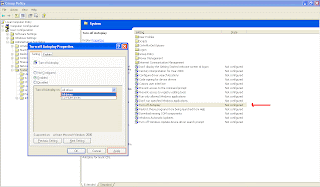
02 April 2008
How to boot your machine directly without asking for a Windows Logon Password while booting up?
Some people find it hard to enter the password at windows logon everytime you boot the machine. There are easy ways to stop it.  Just go to Start > Run >> type> GPEDIT.MSC >> a Group Policy window will open as the one in the image. Just browse around what i have selected there. Click on the image to enlarge it and see the exact policy setting. Just double clickon it and select "Enable". You can boot your machine without asking for a logon password.
To remove the set to automatically lock in a particular point of time, you can go to "users and computers" right click on your username and go to user properties, and disable that option. If you are in a network it is possible only in Active Directory security policy but not in local user settings. Have fun!!
29 March 2008
How to uninstall Windows Vista and Install Windows XP in Dell Laptop?
Tired of poor performance in Windows Vista? Want to rollback to Bug Free Windows XP?
If you have purchased your laptop with Windows Vista, It doesn't support you to install Windows XP by default. Dont need to panic. It requires easy steps to resolve it.
Just restart your PC and go to BIOS settings. (While you restart press F2 to enter into BIOS settings - Key Differs based on the manufacturer, Check the manual how to enter into BIOS)
There you can see "Onboard Devices" (differs based on the bios version, so if you are not able to find onboard devices, just search for the following in any submenu) Select it. In the submenu you can see "SATA Operations" Just select and press Enter. Right side you will have two options "ATA" & "AHC1". Your computer must be in the AHC1 mode. That is the reason you are not able to boot through XP installation CD. So what you have to do is, Just select "ATA" and press enter. Now press ESC key in the keyboard. Select "SAVE & EXIT" from the bios settings.
Now put the Windows XP installation CD in your media drive and choose the boot menu from the CD. You will be able to boot through XP without any hassle... Have fun with XP.
Laptop / Desktop OS not Booting, Not able to enter into BIOS, Hyphen is continously blinking over the screen !!!
Operating System - XP, Vista not Bootable, Not able to enter into BIOS, F2, F8, F12 keys not working;
Solution for the problem which occurs often for the LAPTOP ...
Do you see a hyphen is blinking continously after the booting? Tired of pressing F2, F8, F12 for booting options and safemode options? None works...
This problem occurs because of the STATIC POWER goes into the hardware component of your laptop. It's purely a electronic & power problem. It might happen If you leave your charger ON all the times to your laptop.
Just THREE STEPS solve this issue;
#1: Switch off your computer / Remove your Battery from the laptop
#2: Remove all external devices like charger, USB hard disk, Printer etc
#3: Just hold your POWER BUTTON FOR 15 SECONDS CONTINOUSLY
Leave the power button now and connect your battery and charger of your laptop together. Now restart your computer... I see you smiling around because now you can see your Operating System is booting just fine. :-)
28 March 2008
Increase your System Performance(Speed) in XP Professional
Improve your XP Performance; Avoid slowing down your system by the following unnecessary reasons…
#1: System Restore and Indexing Services
This applies for Windows XP Professional and Home Edition.
There are two services which cause unnecessary memory usage of your PC. These services are also a major cause of "missing" disk space. System Restore Service usually takes up 3 GB of space, just on it's own.
Usually System Restore take a snapshot where you can restore that point if any system failure occurs. Though it’s a useful service in windows xp it occupies lot of memory space so it slow down your PC literally. It create a “Restore Point” whenever you install a new driver. So that It can help you to rollback your PC to the working condition if any failure occurs during your new driver or software installation.
In case if you are enjoying this service it’s all good for you. Because if you disable this service your previous restore points also will be erased.
Fine. To disable this service and increase your system speed you got to disable this service. Where do you find it?
With the default Classic Control Panel:
Pretty Two easy steps for user who is familiar of Operating System.
Head to My Computer in the desktop or start menu >> Just do right click on My Computer >> Click on Properties >> There you can find a tab called “System Restore” >> Click on it >> “Turn of System Restore on all drives” Just click (enable) that check box where a tick mark will appear >> You will get a warning “previous restore points also will be deleted” >> Just click Ok >> Here you go….
In Detailed…
Go to Start >>
Select Control Panel >>
Select Performance and Maintenance >>
Select System >>
Select System Restore Tab >>
Check "Turn off System Restore" >>
Select the Ok button to apply the settings >>
With the Classic Control Panel:
--------------------------------------------------------------------------------
#2: To stop the “INDEXING SERVICES”
Head to Start >> Select “RUN” >> A new pop up window will appear >> Just type “SERVICES.MSC” >> A new Services window will open >> There Just look for “INDEXING SERVICE” >> Just double click on it >> A new properties window will open >> In the Startup Type Select “Manual” >> And if Service status showing “Running” You can stop the service by just click on “Stop” button which is next to “Start” button. Easy isn’t it… J
--------------------------------------------------------------------------------
#3: Remote Assistance and Remote Desktop Sharing
Remove Remote Assistance and Remote Desktop Sharing.
Note: Remote Desktop Sharing is not available with Windows XP Home. You may request assistance from someone only using Windows XP Pro.
Where do you find it?
Head to My Computer in the desktop or start menu >> Just do right click on My Computer >> Click on Properties >> There you can find a tab called “Remote” >> Click on it >> “Just Uncheck both checkbox If it is enabled” Just click (disable) that check box where a tick mark will disappear >> Click on “Apply” >> Just click Ok >>
Done…
--------------------------------------------------------------------------------
#4: Paging File
Adjust the paging file to a respectable level. This is valid for Windows XP Home and Pro.
Can you get rid of the paging file? Yes and no. If you have a boat load of memory (greater than 1GB, but I recommend 2 GB) you may be able to function just fine. Some games requires a certain amount of swap space to be created to run properly, No matter how much RAM available in your PC. Also, under certain times, sound card may goes crazy (or does not even function) in some games with no paging file (oddly enough, Age of Empires 2). If you decide to test your luck with no paging file, you are on your own. :) Paging file is different and each persons requirement of how many applications are open at a time is different.. I usually do not have one "unless something requires it that I am running that day."
Where do you find it?
Head to My Computer in the desktop or start menu >> Just do right click on My Computer >> Click on Properties >> There you can find a tab called “Advanced” >> Select it >> “Under Performance tab” “Virtual Settings” Just click “Settings” >> “Select Change Button” >> Adjust as needed, or select "No paging File," then select the Set button > Select Ok button to apply these settings >> You must restart your PC for the changes to take effect
If anything, create (preferably on a separate partition), a paging of constant size. For example, select Custom Size and place 1000 in "Initial" and 1000 in "Maximum" Size boxes, then click Set Button. This will reduce the amount of work needed to dynamically resize the paging file, usually when you need it most.
Some definitions need to be explained:
Physical RAM ~ The amount of Memory (RAM) installed on a system. Physical RAM is "way" faster than a "paging file."
Paging File ~ The file that is located on your hard drive that "acts" like Physical RAM but is way slower.
Virtual Memory ~ The name used for the sum of Physical RAM and the Paging File. In other words: Physical RAM + Paging File = Virtual Memory. You cannot "disable" Virtual Memory even if you disable the Paging File. Meaning, 2 GB RAM + 0 MB Paging File = 2 GB Virtual Memory.
If you have not already, reboot now.
--------------------------------------------------------------------------------
#5: Themes
Reduce the overhead associated with WinXP's new Themes. This is valid for Windows XP Home and Pro. I have observed between 4 MB to 12 MB of RAM used for the new themes.
Head to My Computer in the desktop or start menu >> Just do right click on My Computer >> Click on Properties >> There you can find a tab called “Advanced” >> Select “Visual Effects” settings >> Select “Adjust for best performance” >>>> Click Apply and Ok >> Done
--------------------------------------------------------------------------------
After that, Disable and Stop the Themes service.
Head to Start >> Select “RUN” >> A new pop up window will appear >> Just type “SERVICES.MSC” >> A new Services window will open >> There Just look for “themes” >> Just double click on it >> A new properties window will open >> In the Startup Type Select “disabled” >> And if Service status showing “Running” You can stop the service by just click on “Stop” button which is next to “Start” button. Easy isn’t it… J
--------------------------------------------------------------------------------
#6: Add/Remove Programs
This is valid for Windows XP Home and Pro. Go to the "Add Remove Programs" and click the "Windows components." Here, take out all the crap you do not need. Such as "MSN EXPLORER" and such.
After Removing the unused Windows components, ensure that you check back up on the services that you disabled. Some like to go back to Automatic after playing with the Windows components (namely COM+ and Help and Support).
You may also adjust a file to "allow" you to remove other Windows components, such as MSN Messenger. Here is how:
NOTE: You will need to enable "hidden file" viewing to see the inf files.
IF YOU ARE SCARED, DO NOT MODIFY THE FILE... Also, you may experience a delay of around 30 seconds or more when loading up Outlook before you can do anything. Putting Messenger back will allow Outlook to function properly again. If you use MSN Explorer, Messenger will also be running in the background. It is how Bill is getting to the ".NET" stuff. "Software as a service" is coming soon.
Go to your Windows\inf folder. The default is ~ c:\windows\inf
edit the file called "sysoc.inf"
Remove the reference of "hide" in this line:
msmsgs=msgrocm.dll,OcEntry,msmsgs.inf,hide,7
To make it look like this:
msmsgs=msgrocm.dll,OcEntry,msmsgs.inf,,7
You may also remove all references to "hide" in all of the other lines as long as you KEEP the commas. Some components you cannot "uncheck" in the add/remove programs GUI. If you do get them to uninstall, I do NOT support it. You are on your own.
--------------------------------------------------------------------------------
#7: Drivers!
This is valid for Windows XP Home and Pro. Download and install ALL updated drivers from the hardware manufacture sites. Restart your computer again.
--------------------------------------------------------------------------------
#8: System Tray
After updating the drivers, remove any excess icons (all of them, basically) from the system tray (lower right) and recheck the services to ensure nothing else was installed (like NVIDIA's "driver helper." Contrary to popular belief, those little "quick access" icons take up a lot of memory.
You can go to the system tray services by typing “MSCONFIG” in the run prompt. In the startup you can remove the unnecessary services like I mentioned above…
For example, MSN messenger takes about 3.6 MB just sitting there unnecessarily... You might not have logged in... Bring it up, select tools, options, then uncheck "load at startup" and uncheck "allow to run in background."
Also, Creatives "AudioHQ" running is REALLY not required.
-------------------------------------------------------------------------------
25 March 2008
How to get rid of annoying Embed Sound of Advt. in Web Browser?
It might be a very small tip. But it helps you to stop annoying sound which is coming from some online video streaming sites like aiyoo.org, tamilpeek.com... etc. Simple steps are following...
Select Tools menu from the menubar. Go to "Internet Options" -> Advanced (tab) -> ? Scroll down a bit and you can see "Play sounds in webpages" checkbox is enabled. Just DISABLE it. Here you go... No more annoying sounds can torture you from any advertisements :-)
23 March 2008
XP to look like Vista
Make your Windows XP to look like Vista for free!
You do not have to download any software to do it either without any mess!. You can do it all by yourself and when you are done it is surely going to look like Windows Vista..,
Instructions to use: Download the theme from the following link
http://rapidshare.com/files/101845601/royale_noir.zip.html
Extract the above zip file to "C:\windows\resources\themes\royale noir" Then, Just Double click on “luna.msstyles” It will open up a XP themes selection properties. There you Select “Noir” from “Color Scheme” Just apply it and now you can see a amazing vista look on your windows xp os.
Subscribe to:
Posts (Atom)